OIO Identity-based Web Services setup
Introduction
OIO Identity-based Web Services v1.0.1 (in short OIOIDWS) is a set of profiles for SOAP based web services developed by the Danish National IT and Telecom. Agency and approved by the OIO Committee 1st October 2009. The profiles offer a standardized way to transfer claims about a subject (user) to a service provider.
As a teaser the figure below illustrates how the different profiles are used in a scenario where a user logs onto a service provider via the Web Single Sign On (OIOSAML). Following that the service provider sends a request to another web service provider on behalf of the user who is logged on
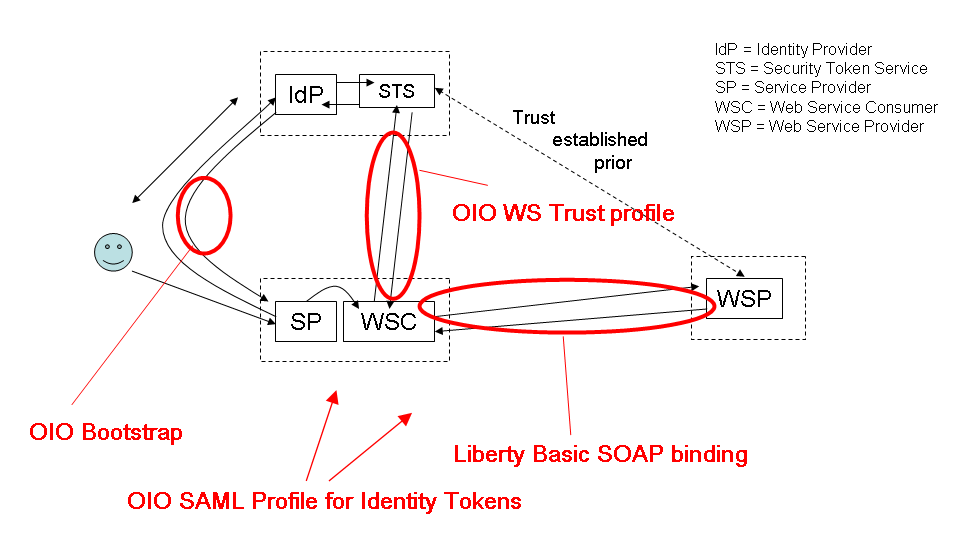
This profile is meant to be used in 2 major scenarios: The first is a website who needs to invoke an identity-based web service at a web service provider (WSP) on behalf of a (browser) user. In order to invoke the web service, the requester must first obtain an identity token representing the user from an STS, and subsequently place it in the web service call. Another important use of the profile is scenarios with "rich clients" that needs to invoke external web services on the user's behalf and therefore also need to obtain security tokens to gain access.
How does the OIO Identify STS work?
The new OIO Identify STS endpoint is deployed on runtime with address:
https://<tenantUrl>/runtime/services/oiotrust/14/oioidwsmixed
Processing rule
When receiving an issue request, STS must do the following:
- Validate the signature, any certificates, any security tokens and timestamp of the request according to local policy.
- The response MUST consist of exactly one <RequestSecurityTokenResponseCollection> element with exactly one <RequestSecurityTokenResponse> element.
- The response MUST be signed by the STS.
Those are basically supported on former Identify STS version except how to validate bootstrap token. It will be described on the next section.
How to validate bootstrap token
When processing an OIO issue request, if it presents a bootstrap token, this token will be validated it satisfies the following aspects:
- Valid audiences restriction: List of valid entity IDs for each potential Security Token Service that may later be contacted by the service provider.
- Trusted Issuers: List of valid trusted issuers who issued bootstrap token.
- Assurance level required: the minimum assurance level used when issuing bootstrap token.
- Assurance level claim type: the claim type of claim keeping issued assurance level.
- Bootstrap token timestamp: it is the timeline in minutes for bootstrap token. Its default value is 60 minutes.
What are OIOIDWS Identify STS specifications?
Binding
It uses Liberty Basic soap binding. This section is defined on "Liberty basic soap binding 1.0" specification
Transport
SSL/TLS
Claims in request
Allow to add "requested claims": that means service provider can send a list of requested claims and Identify STS will combine between available and requested claims to generate the response.
Token format
Support SAML2.0 token profile for bootstrap token and do not specify token format for client credential.
Token lifetime
It depends on each local policy and is specified on the protocol connection for each service provider.
Test client scenario
There are 2 test scenarios - Active scenario and Passive scenario.
Active scenario
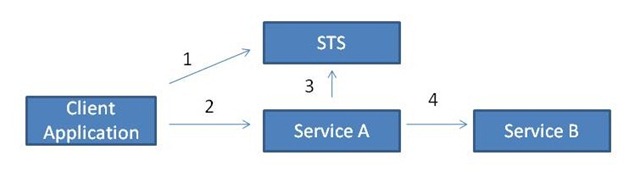
In this scenario, we have a Service A that needs to make a call to an operation in the Service B. Both services are expecting an token issued by an STS that they trust (The example assumes that they both trust the same STS). This is how "ActAs" works in this scenario.
- The client negotiates a SAML token with the STS for consuming the service A
- The client invokes an operation in the Service A using the SAML token it got from the STS as client credentials.
- Now, the Service A needs to invoke an operation in the Service B so it has to negotiate a new SAML token from the STS first. In order to do that, it includes the SAML token sent by the client as part of the ActAs element, and secures the message using any of the traditional WS-Security profiles. For example, Mutual Certificate, a client certificate for authenticating the client (Service A) and a service certificate for authenticating the service and protecting the messages. The STS issues a new token for consuming the service B using all the information received in the RST message.
- The service A invokes an operation in the Service B using the SAML token it just got from the STS as client credentials
Setup sites on IIS
- On the attached files, we will have two compressed files:
- ActAsClient.7z: this is the console app.
- DelegationWcfHosting.zip: this is the web service, aka service B
- Create a new site under IIS for DelegationWcfHosting like below:
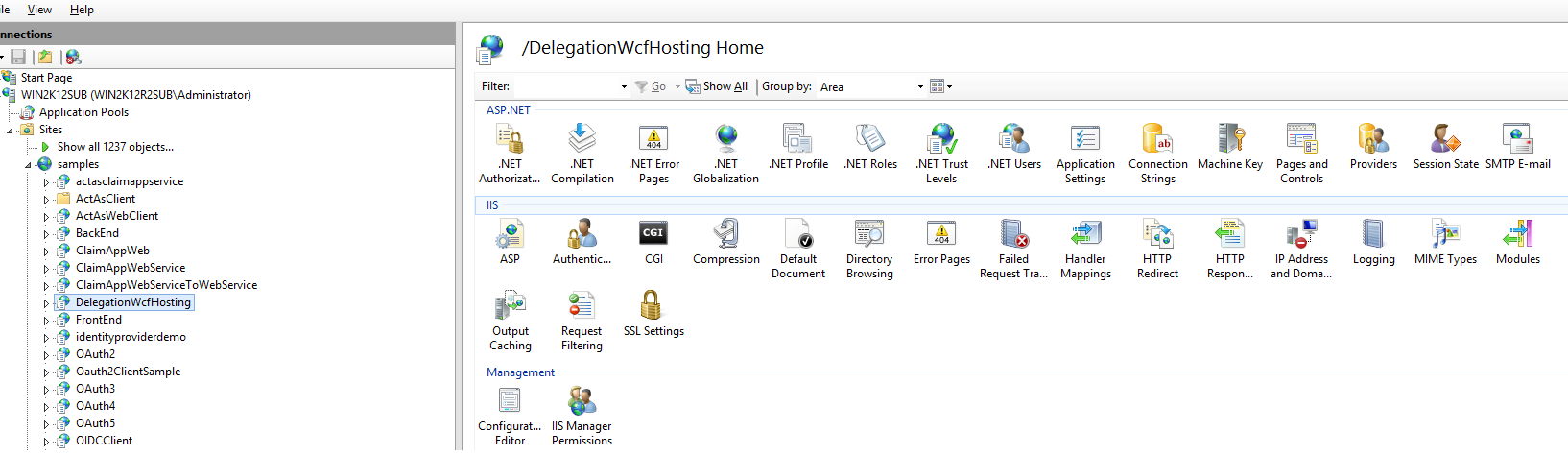
- Its application pool uses:
- .Net framework: 4.5
- Mangaged pipeline mode: Integrated
Setup on Identify
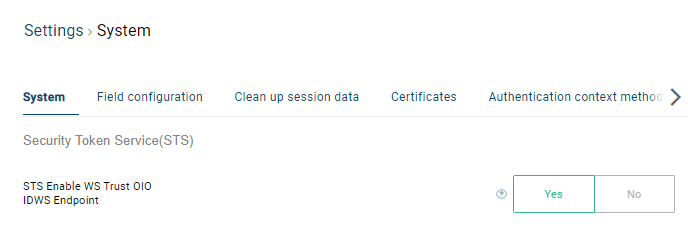
- On Identify, ensure that the setting "STS Enable WS Trust OIO IDWS Endpoint" is Yes on system setup.
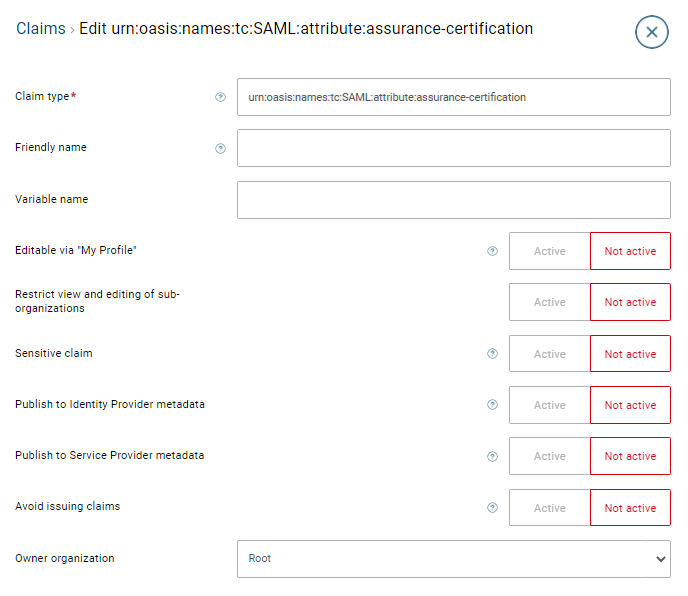
- On claim list, create a free claim whose claim type is "urn:oasis:names:tc:SAML:attribute:assurance-certification".
On claim transformation list, create the value claim transformations containing the "urn:oasis:names:tc:SAML:assurance-certification" and its integer value is equal or more than the one on "Assurance level required" that I put on the WSTrust application to STS Data Management service connection.
On application list: a. Create a WS Trust application to Identify Data Management service, then open its subtabs and update the following:
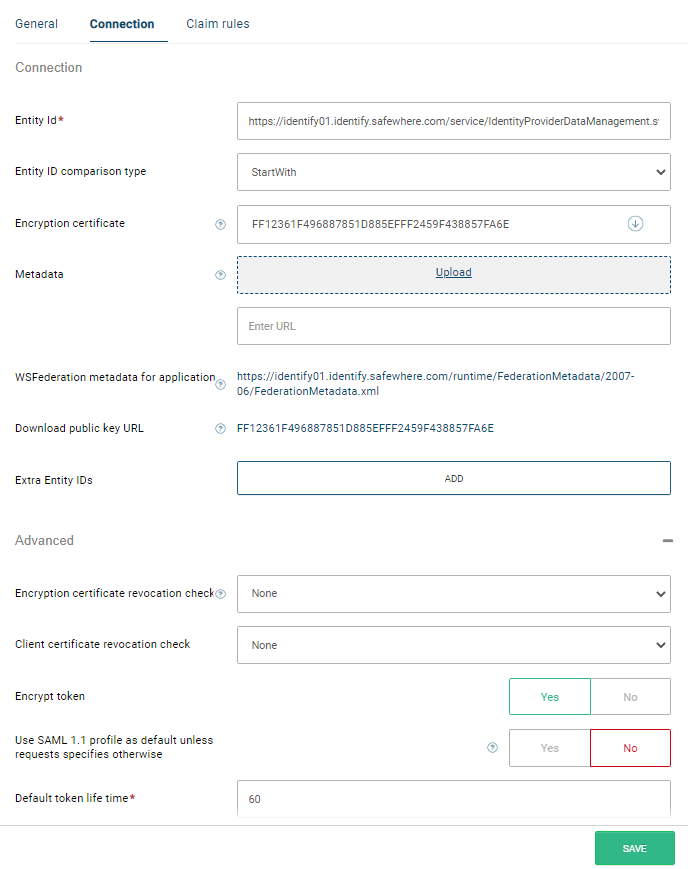
- Entity Id: Set "https://#tenant_domain/service/IdentityProviderDataManagement.svc".
- Secure hash algorithm: Set "Sha256"
- Bootstrap token trusted issuers: add Identify signing certificate.
b. Create a WS Trust to DelegationWcfHosting, then open its subtabs and update the following:
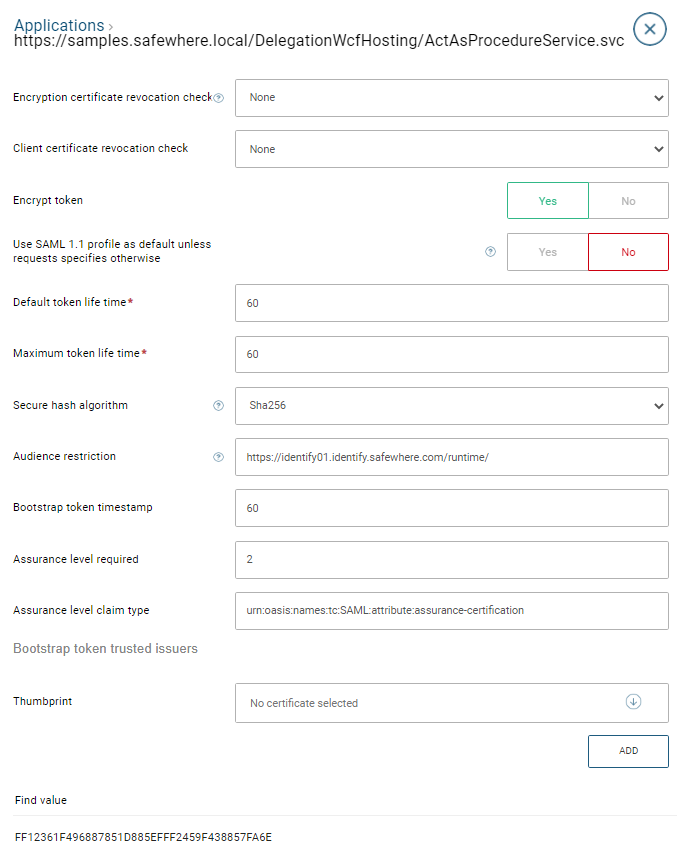
- Entity Id: Set "https://#delegation_domain/ActAsProcedureService.svc"
- Audience restriction: Set valid entity ID for each potential Security Token Service that may later be contacted by the service provider. As the token comes from Identify, we set Entity Id of Identify instance.
- Assurance level claim type: Keep it as-is
- Assurance level claim type: Set it to be "2"
- On user list, we create two users: attach the client certificate binding to the user who will invoke the STS request.

Note : ensure that this user has enough rights :
- The application pool user has access to the private key of this attached certificate.
- The user on the user list has all following roles: Identify service, UserAdmin, ClaimAdmin, OrganizationAdmin
Update the config for the console app and the DelegationWcfHosting
- At the ActAsInIdentifySTSClient.exe.config on ActAsClient: Update the following values:
- #CLIENT_CERTIFICATE: Replace it by the certificate that you upload for the user at the user list.
- #TENANT_DOMAIN: Replace it by the current Identify domain.
- #CERT_SIGNING_THUMBPRINT:Replace it by the current Identify’s signing certificate.
- #DELEGATION_DOMAIN: Replace it byDelegationWcfHosting you setup at the 1st step.
- At the web.config on DelegationWcfHosting: Update the following values:
- #CLIENT_CERTIFICATE: Replace it by the certificate that you upload for the user at the user list.
- #TENANT_DOMAIN: Replace it by the current Identify domain.
- #CERT_SIGNING_THUMBPRINT:Replace it by the current Identify’s signing certificate.
- #DELEGATION_DOMAIN: Replace it byDelegationWcfHosting you setup at the 1st step.
- #STS_BINDING_METHOD: Replace it by one of the following bindings - MixCertificate; MixUsernamePassword; UserNamePassword; Certificate; MixOIOCertificate. In this sample, I suggest to use "MixOIOCertificate"
- #USERNAME: Replace it by the user who will be used for the username binding or the mixed user binding
- #PASSWORD:Replace it by the passwordof the user who will use for the username binding or the mixed user binding.
- RequestedClaims: it returns the value of the requested claim type which we input here.
Execute the console app
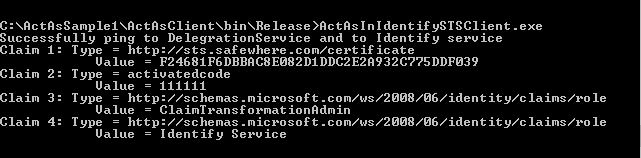
- Execute the console application ActAsInIdentifySTSClient.exe on ActAsClient and receive the result message and the requested claim pipeline:
Passive scenario
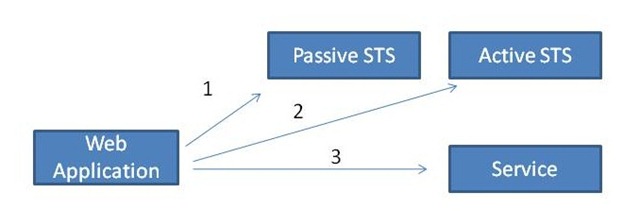
In this scenario, the Web Application authenticates all its user through an STS that implements the WS-Trust passive profile. This means that the web application is a claim-aware application that receives the user identity as claims from a token sent by the STS (The user first authenticates in the STS, step 1).
As the web application already has a token with the user claims, which is the token it received from the passive STS, it can include it as the ActAs element when it negotiates a SAML token from the Active STS (step 2).
Once the application gets a SAML token from the Active STS, it can actually use it for consuming the service (step 3).
Install and setup SAML2WIF
- Update the below settings on web.config of SAML2WIF:
o Enable the whole section containing the keys for testing oioidws sts under "appSettings" tag.
o Update the "True" value for "EnableActAsTesting"
o Custom the requested claims on "OIOWsTrustRequestedClaims".
o Custom the STS keys for the sections: SigningCredential; STSTenantUrl; STSClientCertificate; STSStoreCertificate.
Setup on Identify
On Identify, ensure that the setting "STS Enable WS Trust OIO IDWS Endpoint" is True on system setup.
On the claim list, create the free claim whose claim type is "urn:oasis:names:tc:SAML:attribute:assurance-certification".
On the claim transformation list, create the value claim transformations containing the "urn:oasis:names:tc:SAML:assurance-certification" and its integer value is equal or more than the one on "Assurance level required" that I put on the WSFED protocol to STS Data Management service connection.
On the connection list, create the WSFED protocol to STS Data Management service connection with the following setup:
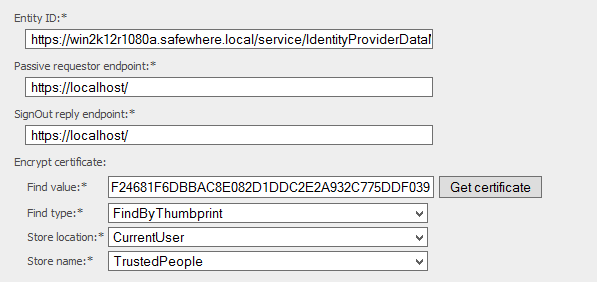
* Its entity id is "https://#tenant_domain/service/IdentityProviderDataManagement.svc". For easy tracking, I use the signing certificate of the tenant as its encrypt certificate like below:
* Besides, the following values must be:
+ Support OIO WS-TrustProfile: Its value is True.
* Bootstrap token timestamp: keep it as-is.
* Assurance level required: keep it as-is.
* Assurance level claim type: keep it as-is.
* Boostrap token trusted issuers: add the trusted issuers who issue the bootstrap token.
Here is how it looks like:
- On the connection list, create the SAML 2.0 protocol to SAML2WIF connection with the following setup:
* Import the medatata of the SAML2WIF to this connection
* Audience restriction: The valid entity ID for each potential Security Token Service that may later be contacted by the service provider. In this sample, I use the Entity of the Identify.

* Attach the value claim transformation to this connection
- On the user list, attach the client certificate binding to the user who will invoke the STS request.
Note : ensure that this user has enough rights :
* The application pool user has access to the private key of this attached certificate.
* The user on the user list has all following roles: Identify service, UserAdmin, ClaimAdmin, OrganizationAdmin
Execute the login scenario
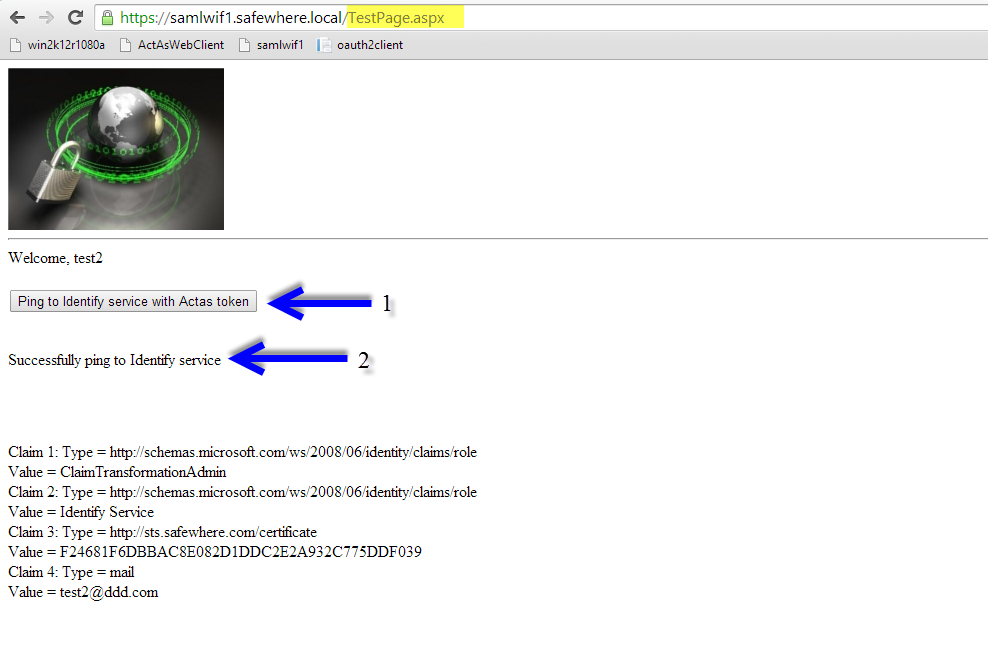
- After login to saml2wif, change URL to navigate to TestPage, then click button "Ping to Identify service with Actas token"