Email server settings
You can find the email server settings in Messaging page (Type is EMAIL). From this list it is possible to add, edit and delete email server configuration. Only the email server set as default is used.
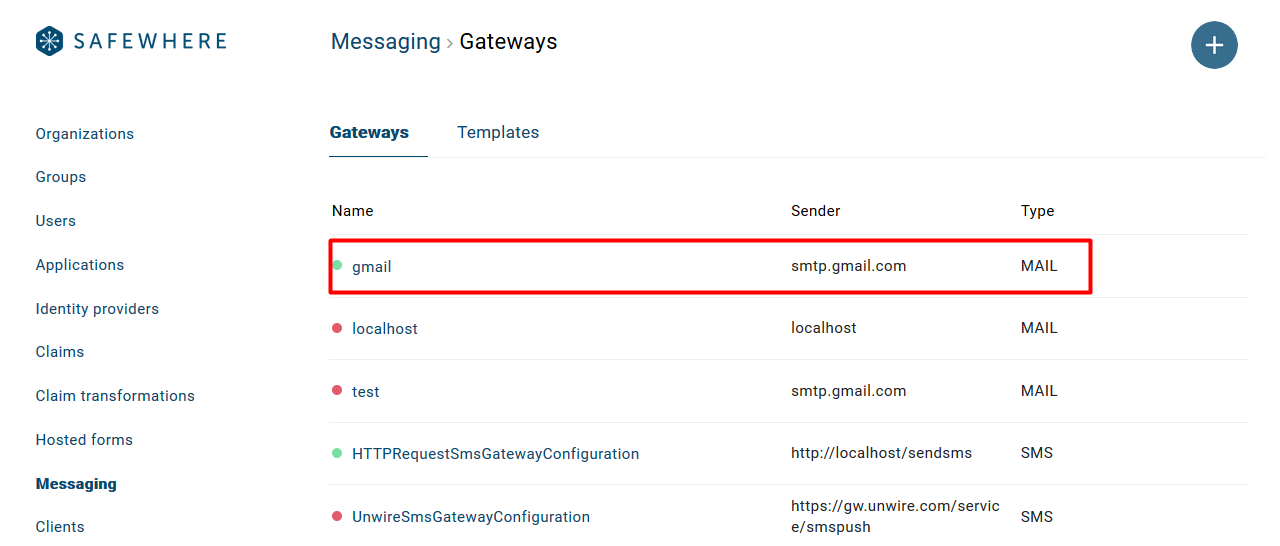
Let’s take a look at the configuration options for the email server.
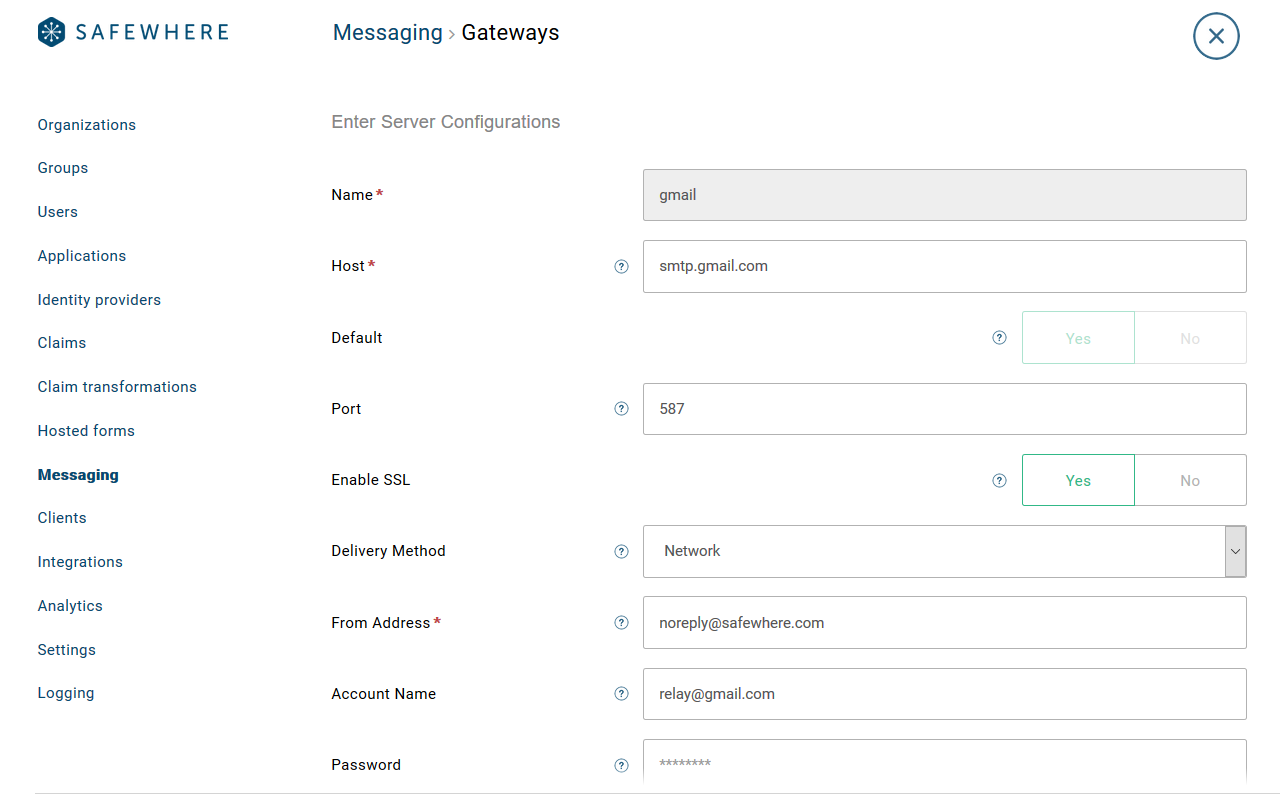
Name: specifies the unique name that is used as the unique identifier of the mail server.
Host: specifies the name or IP address of the host used for SMTP transactions.
Default: specifies whether this email server is the one to be the used when sending emails.
Port: specifies the port used for SMTP transactions.
Enable SSL: specifies whether or not the SMTP Client uses Secure Sockets Layer (SSL) to encrypt the connection.
Delivery Method: specifies how outgoing email messages will be handled. There are three options:
- Network: Email is sent through the network to an SMTP server.
- SpecifiedPickupDirectory: Email is copied to the directory specified by the SmtpClient.PickupDirectoryLocationproperty for delivery by an external application.
- PickupDirectoryFromIis: Email is copied to the pickup directory used by a local Internet Information Services (IIS) for delivery.
From Address: specifies from email address that will be set as the sender of emails.
Use Default Credentials: specifies whether or not the DefaultCredentials are sent with requests. The default credentials are the user credentials of the logged-in user or the user being impersonated.
Account Name: specifies the account name used to authenticate the sender.
Password: specifies the password used to authenticate the sender.
Microsoft Graph Email Configuration
Safewhere Identify supports sending emails using Microsoft Graph API as an alternative to traditional SMTP servers.
Configuration Parameters
When configuring Microsoft Graph for email delivery, use the following settings:
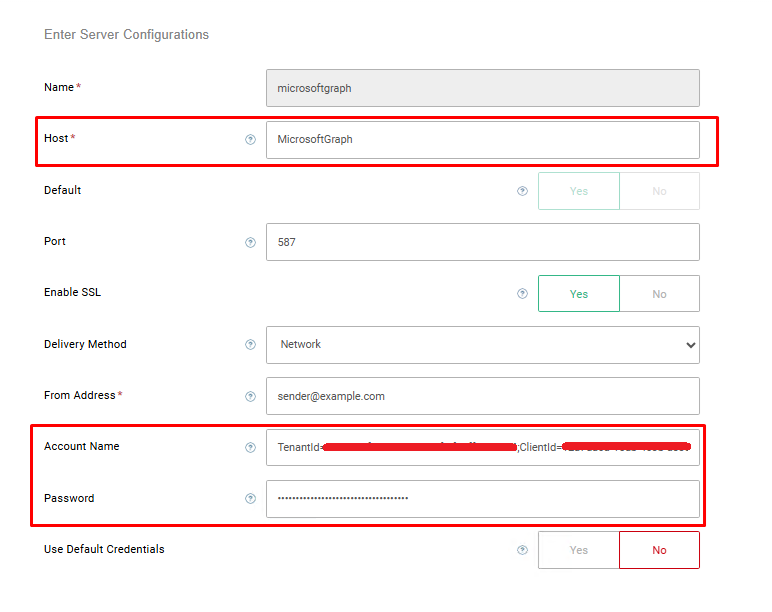
Host: Must be set to MicrosoftGraph (case-sensitive)
Account Name: Must follow this exact format:
TenantId=your-tenant-id;ClientId=your-client-id;UserId=sender-user-id;
- The parameters must be in this exact order
- Replace the values with your actual Azure AD credentials
Password: The client secret of the Azure application
All other settings: Not used when Microsoft Graph is selected as the host
Azure Application Registration
Before configuring Microsoft Graph email settings, you must register an application in Azure Active Directory and configure the necessary permissions.
Required Steps:
Register the Application: Follow Microsoft's guide for registering an application with the Microsoft identity platform
Configure API Permissions: The application requires the following Microsoft Graph permission:
- Mail.Send (Application permission)
For detailed instructions on configuring API permissions, see Microsoft's documentation on configuring permissions
Grant Admin Consent: Ensure that admin consent is granted for the Mail.Send permission
Create Client Secret: Generate a client secret for the application as described in Microsoft's client secret documentation
Required Information:
After completing the Azure setup, you will need:
- Tenant ID: Found in Azure AD > Properties
- Client ID: Found in your app registration > Overview
- Client Secret: Generated in your app registration > Certificates & secrets
- Sender User ID: A valid user ID in your organization that will be used as the sender (this should match the UserId parameter in the Account Name field)
Example Configuration
Name: Microsoft Graph Email Server
Host: MicrosoftGraph
Default: ✓ (checked)
Account Name: TenantId=12345678-1234-1234-1234-123456789abc;ClientId=87654321-4321-4321-4321-abcdef123456;UserId=12345678-1234-1234-1234-12345678;
Password: your-client-secret-value
Email Event Logs
To improve monitoring and troubleshooting, the following log events have been added for email. These logs provide detailed information about result when whenever email sending out success or failure.
| Event ID | Type | Action/Result |
|---|---|---|
| 5806 | Information log | Logged when an email is successfully sent through the configured email server (SMTP or Microsoft Graph). This event confirms that the email was accepted by the email service. |
| 5807 | Error log | Logged when an email sending attempt fails. This event includes error details to help diagnose configuration or connectivity issues. |