How to use text resource on HTML template on Safewhere Admin
Introduction
From Safewhere Admin 5.4, we have added support for localization for UI templates that are customized by using Safewhere Admin’s Hosted forms feature. The customization is supported by using the following syntax:
{{ Resources.TextResourceFileName.TextResourceKey }}
In which:
Resources is must have TextResourceFileName is a text resource file name (without extension) TextResourceKey is a text resource key.
When your Safewhere Identify tenant’s runtime/App_GlobalResouces folder has a Dutch language file and the browser’s language is Dutch, the templates will show the text resource in Dutch.
Our built-in templates have a few "merge fields" in the form of {{code goes here}}. Some of them are assigned with calculated values from server side code and shouldn’t be replaced with custom text resources. The others are pure text resources and thus can be localized safely. Those fields are listed in the tables below:
Login screen
| Field | Can be replaced with new syntax? | Note |
|---|---|---|
| {{ Title }} | Yes | |
| {{ Model.Message }} | No | Its value is from text resource key RuntimeModelAuthenticationListMessage (\runtime\App_GlobalResources\RuntimeModelResources.en.resx) |
| {{Model.AuthenticationLinks}} | No | |
| {{Model.UserNamePasswordActionLink}} | No | |
| {{ Csrf }} | No | |
| {{ Copyright }} | No |
Reset Password screen
| Field | Can be replaced with new syntax? | Note |
|---|---|---|
| {{ Title }} | Yes | |
| {{ Model.Header }} | No | Its value is from text resource key UserNamePasswordInsertEitherIBCOrEmailToRenewPassword |
| {{ ErrorMessage }} | No | Its value is from text resource key UserNamePasswordInvalidResetPasswordCode |
| {{ Captchar }} | No | |
| {{Model.UniqueIdentifyBearingClaimName}} | No | |
| {{Model.EmailClaimName}} | No | |
| {{ Copyright }} | No |
Simple Login screen
| Field | Can be replaced with new syntax? | Note |
|---|---|---|
| {{ Title }} | Yes | |
| {{ Model.Header }} | No | Its value is from text resource key UserNamePasswordInsertEitherIBCOrEmailToRenewPassword |
| {{ Model.ErrorMessage }} | No | Its value is from text resource key UserNamePasswordInvalidResetPasswordCode |
| {{ Model.AttemptLeftFailedMessage }} | No | |
| {{ ResetPasswordLink }} | No | |
| {{ ReturnToLoginSelectorLink }} | No | |
| {{ Model.NameClaim }} | No |
Examples
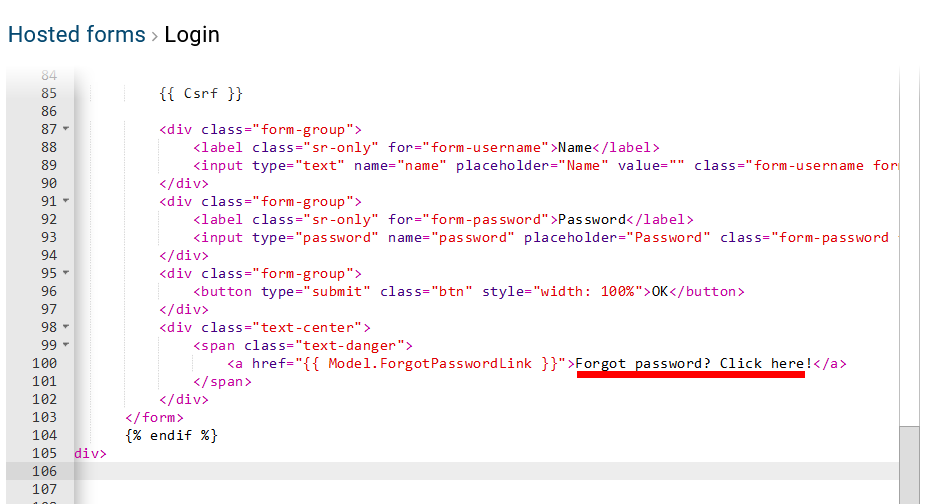
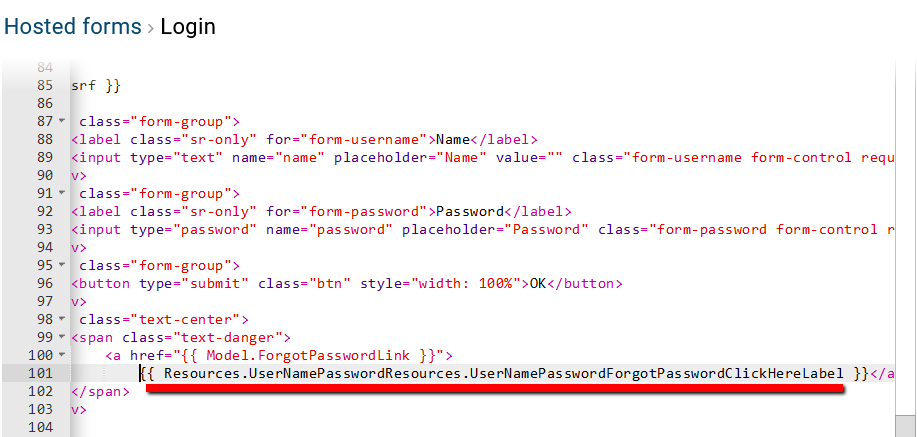
Example 1: To change the text "Forgot password? Click here!" in HTML template of the Login screen to resource key UserNamePasswordForgotPasswordClickHereLabel in resource file UserNamePasswordResources, you can use:
{{ Resources.UserNamePasswordResources.UserNamePasswordForgotPasswordClickHereLabel}}
Before:
After:
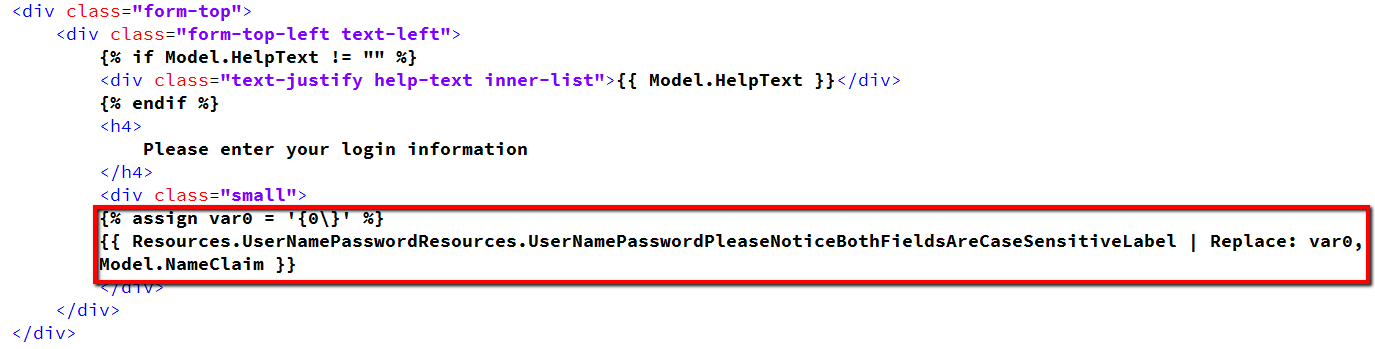
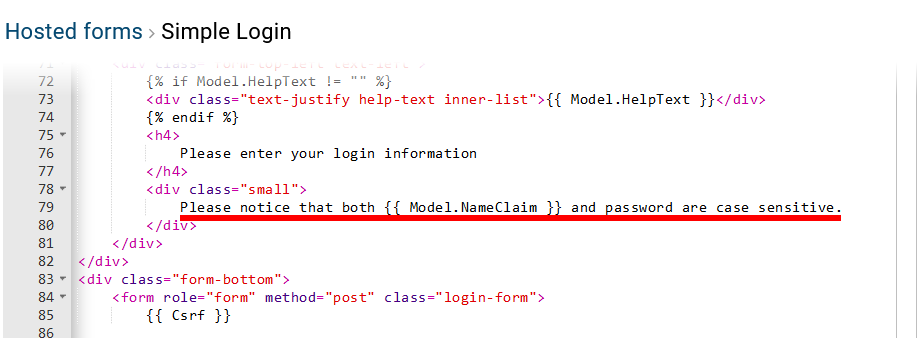
Example 2: Change the text "Please notice that both {{ Model.NameClaim }} and password are case sensitive." in Simple Login screen to resource key UserNamePasswordPleaseNoticeBothFieldsAreCaseSensitiveLabel in resource file UserNamePasswordResources (with {{Model.NameClaim}} as a paramter of the resource), we can use:
{% assign var0 = '{0\}' %}
{{ Resources.UserNamePasswordResources.UserNamePasswordPleaseNoticeBothFieldsAreCaseSensitiveLabel | Replace: var0, Model.NameClaim }}
The syntax is a bit complex, but we have to find a good balance between usability and security.
Before:
After: