Stronger SSO enrollment enforcement
Use case: stronger SSO enrollment with email verification and TOTP enrollment
Ensure that every user authenticating through SSO has verified possession of their corporate email address and has enrolled a TOTP authenticator before accessing any SSO-enabled system.
Main scenario
Step 1 — User initiates login
- The user accesses an SSO-enabled application.
- The upstream IdP authenticates the user and passes the user's email claim to the SSO platform.
Step 2 — SSO determines second-factor method
The SSO executes the email possession script:
- If the user's
ContactMethodVerificationStateis notVerified, the system selects Email OTP. - The system sets the verification state to Verifying.
Step 3 — Email verification
- The SSO sends an email OTP to the user's email address.
- The user enters the received OTP in the SSO interface.
- The OTP is validated successfully.
- Before completing second-factor validation, SSO:
- Converts state from Verifying → Verified.
- Restarts the MFA flow to enforce TOTP enrollment.
Step 4 — MFA enrollment (TOTP)
- The system now selects TOTP Authenticator based on the verified email state.
- The user is prompted to:
- Scan a QR code or copy a secret into an authenticator app.
- Enter the generated TOTP code to complete TOTP enrollment.
- SSO validates the code and stores the TOTP enrollment.
Step 5 — Access granted
- The user is redirected to the target application.
- MFA change notification (enrollment) is sent to the user via email.
Deployment and configuration
This section describes the deployment steps required to introduce the stronger enrollment security enhancements.
All users are required to complete a new enrollment process when accessing SSO for the first time (or after an enforced reset):
- Users must verify ownership of their email via a one-time passcode (OTP).
- After successful email verification, users must enroll a TOTP-based MFA method (authenticator app).
- Access to SSO-enabled systems is only granted after completing enrollment.
Prerequisites
Ensure the following conditions are met before deployment:
- Upstream IdP configuration: The IdP must issue the user's email as an identity-bearing claim.
- SMTP configuration: SMTP must be properly configured for:
- Email OTP delivery
- MFA change notification emails
- OTP capabilities: Support for both Email OTP and TOTP Authenticator (for example, Google Authenticator or Microsoft Authenticator).
Deployment steps
Step 1: Upgrade tenant
Upgrade the tenant to the latest available build that includes:
- Script library support
- MFA notification capability
- Updated MFA flow handling
Step 2: Create script in script library
Navigate to:
Script Library → Create New Script
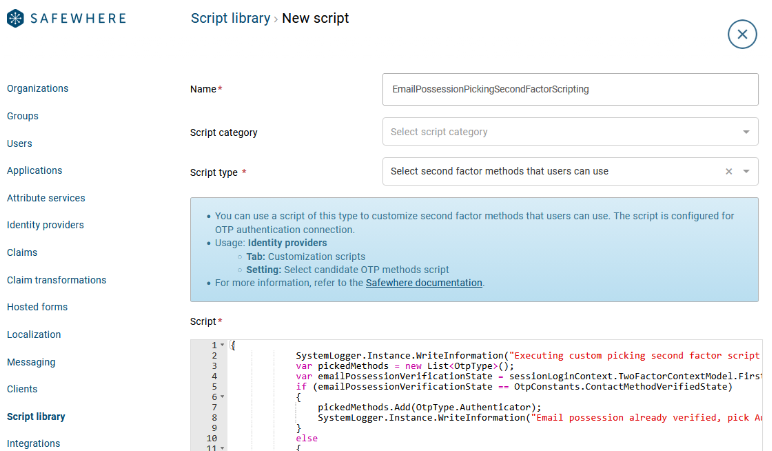
Configuration:
Name:
EmailPossessionPickingSecondFactorScripting(Name can be customized if needed)Type:
Select second factor methods that users can useScript Content:
{
    SystemLogger.Instance.WriteInformation("Executing custom picking second factor script: EmailPossessionPickingSecondFactorScripting.");

    var pickedMethods = new List<OtpType>();

    var emailPossessionVerificationState =
        sessionLoginContext.TwoFactorContextModel.FirstFactorPrincipal
        .GetSystemClaimProperty(OtpConstants.ContactMethodVerificationState);

    if (emailPossessionVerificationState == OtpConstants.ContactMethodVerifiedState)
    {
        pickedMethods.Add(OtpType.Authenticator);
        SystemLogger.Instance.WriteInformation("Email possession already verified, pick Authenticator method for second factor.");
    }
    else
    {
        var authenticatorProvider = tokenProviders.FirstOrDefault(p => p.OtpType == OtpType.Authenticator);

        if (authenticatorProvider != null &&
            !string.IsNullOrEmpty(authenticatorProvider.GetContactInformation(
                otpOptions,
                sessionLoginContext.TwoFactorContextModel,
                otpOptions.OtpAuthConnection)))
        {
            pickedMethods.Add(OtpType.Authenticator);
            SystemLogger.Instance.WriteInformation("User have enrolled in Authenticator method, pick it for second factor.");
        }
        else
        {
            sessionLoginContext.TwoFactorContextModel.FirstFactorPrincipal
                .SetSystemClaimProperty(
                    OtpConstants.ContactMethodVerificationState,
                    OtpConstants.ContactMethodVerifingState);

            pickedMethods.Add(OtpType.Email);

            SystemLogger.Instance.WriteInformation("User haven't verified email possession, pick Email method for second factor and set ContactMethodVerificationState to Verifying.");
        }
    }

    var requestedAuthenticationContextClassUri =
        requestedAuthenticationContextModel.RequestedAuthenticationContextClass.FirstOrDefault();

    var requestedAuthenticationContextClass = string.Empty;

    if (requestedAuthenticationContextClassUri != null)
    {
        requestedAuthenticationContextClass = requestedAuthenticationContextClassUri.ToString();
    }

    return new OtpMethodsByRequestedAuthenticationContextClass()
    {
        Methods = pickedMethods,
        RequestedAuthenticationContextClass = requestedAuthenticationContextClass
    };
}
Step 3: Configure OTP connection
Create or update your OTP connection with the following requirements:
Exactly two OTP methods must be enabled:
- Email OTP
- TOTP Authenticator
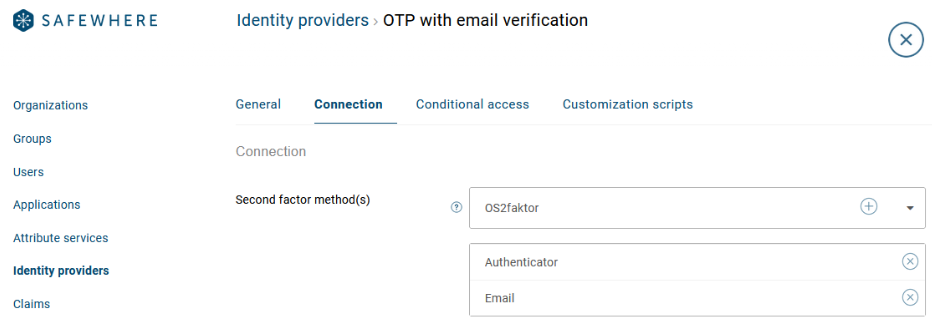
- Assign the script:
In the field:
Select candidate OTP methods script
Set the value:
UseScriptLibrary::EmailPossessionPickingSecondFactorScripting