CSS stylesheet (used only for Wizard pages)
Currently, we use the CSS style sheet for only the PDKNC theme and its main purpose for the attributes for the wizard page. Each wizard page will use a specific CSS. You can find it at C:\ [Installed path]\Themes\PDKNC\css\PDKNCDataWizardEditor.css
For the attributes on the wizard page, we have many UIs for them based on their syntax.
Due to the complex css stylesheet, we have some basic rules :
- We need to limit using one CSS for many attributes. Each attribute needs to have its own CSS style sheet for that attribute.
- The isReadOnly setting can affect the attribute UI when the attribute's syntax is UnicodeString.
The following are samples based on the current CSS style sheets, which we support.
Syntax: UnicodeString
We often use it as the text box for the attribute whose claim type is free claim or discrete claim. The isReadOnly attribute can affect the way we want the attribute to be read-only or not.
UnicodeString without using any buttons
Free claim
- On page setup for the wizard page: We declare like below:
<Attribute
   name="email"
   valueresolveby="identify"
   canuserchoosecorrectvalue="true"
   cssclass ="pdknc_email"
   titlecssclass ="pdknc_emailtitle"
   descriptioncssclass ="pdknc_emaildescription"
   editorcssclass ="pdknc_emaileditor"
   editortitlecssclass ="pdknc_emaileditortitle"
   editorcontrolcssclass ="pdknc_emaileditorcontrol" />
- When isReadOnly is False: The UI will look like below:

<AttributeDefinition
    name="email"
    claimId="9961F433-739A-4AB6-9E64-330F11B7F7E9"
    claimType="Email"
    resourceKey="UserAdministration_UserName"
    displayName="E-mail"
    displayTitle ="E-mailadresse"
    helpText="Please insert your email to be notified immediately when new documents are available."
    userInterfaceOption="Optional"
    isReadOnly=""
    syntax="UnicodeString"
    regularExpressionName="EmailAddress" />
- When isReadOnly is True: The UI will look like below:

<AttributeDefinition
	name="email"
	claimId="9961F433-739A-4AB6-9E64-330F11B7F7E9"
	claimType="Email"
	resourceKey="UserAdministration_UserName"
	displayName="E-mail"
	displayTitle ="E-mailadresse"
	helpText="Please insert your email to be notified immediately when new documents are available."
	userInterfaceOption="Optional"
	isReadOnly="True"
	syntax="UnicodeString"
	regularExpressionName="EmailAddress" />
Discrete claim
Multi discrete claim
- isReadOnly is False: The UI will look like below:
<Attribute
   name="multi"
   valueResolveBy="Identify"
   canUserChooseCorrectValue="False"
   cssClass ="pdknc_role"
   titleCssClass ="pdknc_roleTitle"
   descriptionCssClass ="pdknc_roleDescription"
   editorCssClass ="pdknc_roleEditor"
   editorTitleCssClass ="pdknc_roleEditorTitle"
   editorControlCssClass ="pdknc_roleEditorControl" />
- When isReadOnly is True: The UI will look like below:
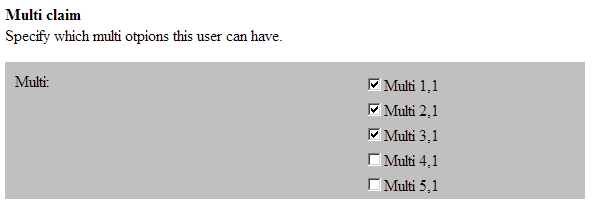
<AttributeDefinition name="multi" claimId="801a3849-db4d-439d-b261-27958440fd5a" claimType="http://schemas.microsoft.com/ws/2008/06/identity/claims/multi"
   resourceKey="UserAdministration_UserName" displayName="Multi" displayTitle ="Multi" helpText="Specify which multi options this user can have."
   userInterfaceOption="Optional" isReadOnly="" syntax="UnicodeString" />
- When isReadOnly is True: The UI will look like below:
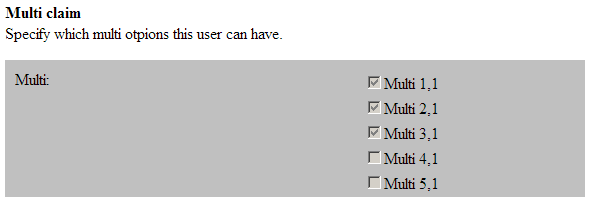
<AttributeDefinition
	name="multi"
	claimId="801a3849-db4d-439d-b261-27958440fd5a"
	claimType="http://schemas.microsoft.com/ws/2008/06/identity/claims/multi"
	resourceKey="UserAdministration_UserName"
	displayName="Multi"
	displayTitle ="Multi"
	helpText="Specify which multi options this user can have."
	userInterfaceOption="Optional"
	isReadOnly=""
	syntax="UnicodeString" />
Single discrete claim
- On page setup for the wizard page: We declare like below:
<Attribute
   name="single"
   valueResolveBy="Identify"
   canUserChooseCorrectValue="False"
   cssClass ="pdknc_single"
   titleCssClass ="pdknc_singleTitle"
   descriptionCssClass ="pdknc_singleDescription"
   editorCssClass ="pdknc_singleEditor"
   editorTitleCssClass ="pdknc_singleEditorTitle"
   editorControlCssClass ="pdknc_singleEditorControl">
</Attribute>
- When isReadOnly is False : The UI will look like below:

<AttributeDefinition name="single"
	claimId="D2F8ED96-537A-4D17-87F6-491A022DAF47"
	claimType="Singlet2"
	resourceKey="UserAdministration_UserName"
	displayName="Single claim"
	displayTitle ="single"
	helpText="Specify which single option this user can have."
	userInterfaceOption="Optional"
	isReadOnly=""
	syntax="UnicodeString" />
- When isReadOnly is True : The UI will look like below:

<AttributeDefinition name="multi"
	claimId="801a3849-db4d-439d-b261-27958440fd5a"
	claimType="http://schemas.microsoft.com/ws/2008/06/identity/claims/multi"
	resourceKey="UserAdministration_UserName"
	displayName="Multi"
	displayTitle ="Multi"
	helpText="Specify which multi options this user can have."
	userInterfaceOption="Optional"
	isReadOnly="True"
	syntax="UnicodeString" />
UnicodeString with Edit button
We use this mode IsReadOnly=True. However, I will make some samples with IsReadOnly=False for reference
Free claim
- On page setup for the wizard page: We declare like below:
<Attribute
     name="email"
     valueResolveBy="Identify"
     canUserChooseCorrectValue="True"
     cssClass ="pdknc_email"
     titleCssClass ="pdknc_emailTitle"
     descriptionCssClass ="pdknc_emailDescription"
     editorCssClass ="pdknc_emailEditor"
     editorTitleCssClass ="pdknc_emailEditorTitle"
     editorControlCssClass ="pdknc_emailEditorControl"
     enableEditButton ="True"
     editButtonText ="Skift"
     editButtonCssClass ="pdknc_emailEditbutton"
     editorControlEditCssClass ="pdknc_emailEditorControlEdit" />
- When isReadOnly is False: The UI will look like below:
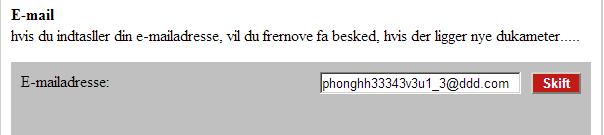
 <AttributeDefinition name="email"
	claimId="9961F433-739A-4AB6-9E64-330F11B7F7E9"
	claimType="Email"
	resourceKey="UserAdministration_UserName"
	displayName="E-mail"
	displayTitle ="E-mailadresse"
	helpText="hvis du indtasller din e-mailadresse, vil du frernove fa besked, hvis der ligger nye dukameter....."
	userInterfaceOption="Optional"
	isReadOnly=""
	syntax="UnicodeString"
	regularExpressionName="EmailAddress" />
- When isReadOnly is True: The UI will look like below:
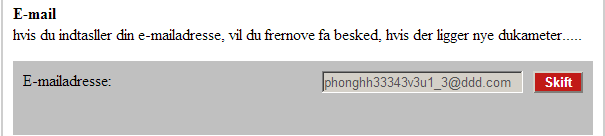
<AttributeDefinition name="email"
	claimId="9961F433-739A-4AB6-9E64-330F11B7F7E9"
	claimType="Email"
	resourceKey="UserAdministration_UserName"
	displayName="E-mail"
	displayTitle ="E-mailadresse"
	helpText="hvis du indtasller din e-mailadresse, vil du frernove fa besked, hvis der ligger nye dukameter....."
	userInterfaceOption="Optional"
	isReadOnly="True"
	syntax="UnicodeString"
	regularExpressionName="EmailAddress" />
Discrete claim
Multi discrete claim
- isReadOnly is False: The UI will look like below:
 <Attribute
     name="multi"
     valueResolveBy="Identify"
     canUserChooseCorrectValue="False"
     cssClass ="pdknc_multi"
     titleCssClass ="pdknc_multiTitle"
     descriptionCssClass ="pdknc_multiDescription"
     editorCssClass ="pdknc_multiEditor"
     editorTitleCssClass ="pdknc_multiEditorTitle"
     editorControlCssClass ="pdknc_multiEditorControl"
     enableEditButton ="True"
     editButtonText ="Skift"
     editButtonCssClass ="pdknc_multiEditbutton"
     editorControlEditCssClass ="pdknc_multiEditorControlEdit" />
- When isReadOnly is True: The UI will look like below:
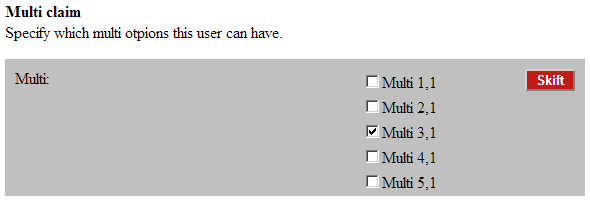
<AttributeDefinition name="multi"
	claimId="801a3849-db4d-439d-b261-27958440fd5a"
	claimType="http://schemas.microsoft.com/ws/2008/06/identity/claims/multi"
	resourceKey="UserAdministration_UserName"
	displayName="Multi"
	displayTitle ="Multi"
	helpText="Specify which multi otpions this user can have."
	userInterfaceOption="Optional"
	isReadOnly=""
	syntax="UnicodeString" />
- When isReadOnly is True: The UI will look like below:
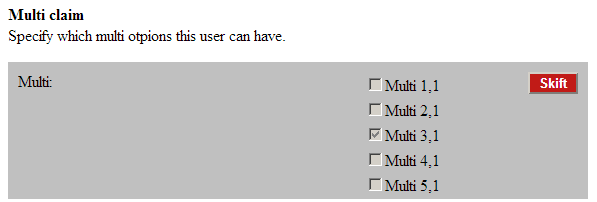
<AttributeDefinition name="multi"
	claimId="801a3849-db4d-439d-b261-27958440fd5a"
	claimType="http://schemas.microsoft.com/ws/2008/06/identity/claims/multi"
	resourceKey="UserAdministration_UserName"
	displayName="Multi"
	displayTitle ="Multi"
	helpText="Specify which multi otpions this user can have."
	userInterfaceOption="Optional"
	isReadOnly="True"
	syntax="UnicodeString" />
Single discrete claim
- On page setup for the wizard page: We declare like below:
<Attribute
     name="single"
     valueResolveBy="Identify"
     canUserChooseCorrectValue="False"
     cssClass ="pdknc_single"
     titleCssClass ="pdknc_singleTitle"
     descriptionCssClass ="pdknc_singleDescription"
     editorCssClass ="pdknc_singleEditor"
     editorTitleCssClass ="pdknc_singleEditorTitle"
     editorControlCssClass ="pdknc_singleEditorControl"
     enableEditButton ="True"
     editButtonText ="Skift"
     editButtonCssClass ="pdknc_singleEditbutton"
     editorControlEditCssClass ="pdknc_singleEditorControlEdit" />
- When isReadOnly is False : The UI will look like below:

<AttributeDefinition name="single"
	claimId="D2F8ED96-537A-4D17-87F6-491A022DAF47"
	claimType="Singlet2"
	resourceKey="UserAdministration_UserName"
	displayName="Single claim"
	displayTitle ="single"
	helpText="Specify which single option this user can have."
	userInterfaceOption="Optional"
	isReadOnly=""
	syntax="UnicodeString" />
- When isReadOnly is True : The UI will look like below:

<AttributeDefinition name="multi"
	claimId="801a3849-db4d-439d-b261-27958440fd5a"
	claimType="http://schemas.microsoft.com/ws/2008/06/identity/claims/multi"
	resourceKey="UserAdministration_UserName"
	displayName="Multi"
	displayTitle ="Multi"
	helpText="Specify which multi options this user can have."
	userInterfaceOption="Optional"
	isReadOnly="True"
	syntax="UnicodeString" />
UnicodeString with Generate and Reset button
We use this mode IsReadOnly=True. However, I will make some samples with IsReadOnly=False for reference
Free claim
- On page setup for the wizard page: We declare like below:
<Attribute
     name="accesscode"
     valueResolveBy="Identify"
     canUserChooseCorrectValue="False"
     generateValueExpression ="########"
     generateResetButton="true"
     generateButtonText="Generate"
     resetButtonText="Reset" />
- When isReadOnly is False:
<AttributeDefinition
	name="accesscode"
	destinationClaimType="http://schemas.xmlsoap.org/ws/2005/05/identity/claims/accesscodedes"
	sourceClaimType="http://schemas.xmlsoap.org/ws/2005/05/identity/claims/accesscode"
	resourceKey="UserAdministration_UserName"
	displayName="Din Mobil adgang er nu aktiveret"
	displayTitle ="Access code"
	helpText="Du kan nu logge ind med dine mobil. Du skrel bruge denne....."
	userInterfaceOption="Optional"
	isReadOnly=""
	syntax="UnicodeString" />
- When isReadOnly is True:
<AttributeDefinition
	name="accesscode"
	destinationClaimType="http://schemas.xmlsoap.org/ws/2005/05/identity/claims/accesscodedes"
	sourceClaimType="http://schemas.xmlsoap.org/ws/2005/05/identity/claims/accesscode"
	resourceKey="UserAdministration_UserName"
	displayName="Din Mobil adgang er nu aktiveret"
	displayTitle ="Access code"
	helpText="Du kan nu logge ind med dine mobil. Du skrel bruge denne....."
	userInterfaceOption="Optional"
	isReadOnly="True"
	syntax="UnicodeString"/>
Syntax: Password
We use it as the textbox for the password claim and this inuse claim is Free claim. The isReadOnly attribute can affect to the way we want the atrribute to be readonly or not.
- On page setup for the wizard page: We declare like below:
<Attribute
   name="password"
      valueResolveBy="Identify"
      canUserChooseCorrectValue="False"
      cssClass ="pdknc_password"
      titleCssClass ="pdknc_passwordTitle"
      descriptionCssClass ="pdknc_passwordDescription"
      editorCssClass ="pdknc_passwordEditor"
      editorTitleCssClass ="pdknc_passwordEditorTitle"
      editorControlCssClass ="pdknc_passwordEditorControl" />
- When isReadOnly is False: The UI will look like below:

<AttributeDefinition
	name="password"
	claimId="DF04D40C-5406-4CC3-BD86-DB582382C021"
	claimType="http://schemas.microsoft.com/ws/2008/06/identity/claims/password"
	resourceKey="UserAdministration_UserName"
	displayName="Vaelg et kodeord"
	displayTitle ="Indtast kodeord"
	helpText="Indtast det kodeord du onsker at bruge hver gamg du skal logge ind med med mobilen."
	userInterfaceOption="Optional"
	isReadOnly=""
	syntax="Password"
	regularExpressionName="Password1" />
- When isReadOnly is True: The UI will look like below:

<AttributeDefinition
	name="password"
	claimId="DF04D40C-5406-4CC3-BD86-DB582382C021"
	claimType="http://schemas.microsoft.com/ws/2008/06/identity/claims/password"
	resourceKey="UserAdministration_UserName"
	displayName="Vaelg et kodeord"
	displayTitle ="Indtast kodeord"
	helpText="Indtast det kodeord du onsker at bruge hver gamg du skal logge ind med med mobilen."
	userInterfaceOption="Optional"
	isReadOnly="True"
	syntax="Password"
	regularExpressionName="Password1" />
Syntax: Readme
We use it to show the policy that need user to accept it before continuing using. Currently we use it on the wizard step. It will look like below.
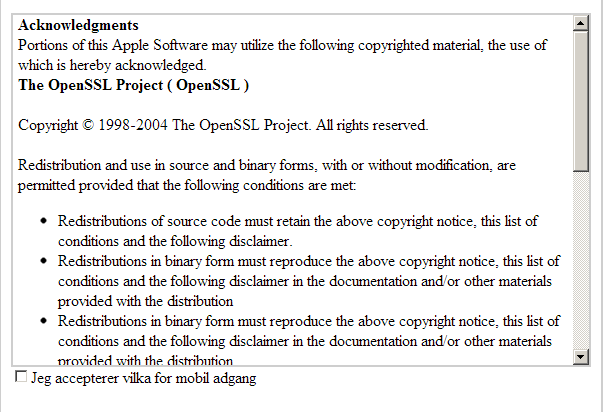
- On page setup for the wizard page: We declare like below:
<Attribute
     name="readme"
     cssClass ="pdknc_readMe"
     valueResolveBy="Identify"
     canUserChooseCorrectValue="False"
     titleCssClass ="pdknc_readMeTitle"
     descriptionCssClass ="pdknc_readMeDescription"
     editorCssClass ="pdknc_readMeEditor"
     editorTitleCssClass ="pdknc_readMeEditorTitle"
     editorControlCssClass ="pdknc_readMeEditorControl" />
- Attribute declaration:
<AttributeDefinition name="readme"
destinationClaimType="http://schemas.microsoft.com/ws/2008/06/identity/claims/readme"
sourceClaimType="http://schemas.microsoft.com/ws/2008/06/identity/claims/readme"
resourceKey="UserAdministration_UserName"
displayName="Jeg accepterer vilka for mobil adgang"
displayTitle =""
helpText="
<b>Acknowledgments</b> </br>
Portions of this Apple Software may utilize the following copyrighted material, the use of which is hereby acknowledged.</br>
<b>The OpenSSL Project ( OpenSSL )</b> </br></br>
Copyright © 1998-2004 The OpenSSL Project. All rights reserved. </br></br>
Redistribution and use in source and binary forms, with or without modification, are permitted provided that the following conditions are met: </br>
<ul> <li> Redistributions of source code must retain the above copyright notice, this list of conditions and the following disclaimer. </li>
<li> Redistributions in binary form must reproduce the above copyright notice, this list of conditions and the following disclaimer in the documentation and/or other materials provided with the distribution </li>"
userInterfaceOption="Optional"
isReadOnly=""
syntax="ReadMe"
regularExpressionName="" />
Syntax: Label
We often use it as the label for the attribute whose claim type is free claim. The default mode is Readonly regardless of the isReadOnly 's value . And it will be switched to the editable mode when you click on Edit button.
Besides, we can't use Generate and Reset button with this syntax because you must switch the label to the textbox mode update the value. So I just list 2 following general cases.
Label without using any buttons:
The UI will look like below:

- On page setup for the wizard page: We declare like below:
<Attribute
     name="cpr-nc"
     valueResolveBy="Identify"
     canUserChooseCorrectValue="False"
     cssClass ="pdknc_cprNc"
     titleCssClass ="pdknc_cprNcTitle"
     descriptionCssClass ="pdknc_cprNcDescription"
     editButtonCssClass ="pdknc_cprNcEditbutton"
     editorCssClass ="pdknc_cprNcEditor"
     editorTitleCssClass ="pdknc_cprNcEditorTitle"
     editorControlCssClass ="pdknc_cprNcEditorControl" />
- Attribute declaration:
<AttributeDefinition
	name="cpr-nc"
	claimId="f9d96629-317c-4751-8891-ace3c1b46a61"
	claimType="http://schemas.xmlsoap.org/ws/2005/05/identity/claims/cprnc"
	resourceKey="UserAdministration_UserName"
	displayName=""
	displayTitle ="Cpr-nc"
	helpText="For at se Dim Egen Pension mobilen skai du bruge dit cpr-nc.org din kodeord Foste gang du logger pe an ny mobil skal du ogsa bruge den ottle-cifrede aktivertingskode"
	userInterfaceOption="Optional"
	isReadOnly="False"
	syntax="Label"
	regularExpressionName="" />
Label with Edit button
The UI will look like below:

- On page setup for the wizard page: We declare like below:
<Attribute
     name="cpr-nc"
     valueResolveBy="Identify"
     canUserChooseCorrectValue="False"
     enableEditButton ="True"
     editButtonText ="Skift"
     cssClass ="pdknc_cprNc"
     titleCssClass ="pdknc_cprNcTitle"
     descriptionCssClass ="pdknc_cprNcDescription"
     editButtonCssClass ="pdknc_cprNcEditbutton"
     editorCssClass ="pdknc_cprNcEditor"
     editorTitleCssClass ="pdknc_cprNcEditorTitle"
     editorControlCssClass ="pdknc_cprNcEditorControl"
     editorControlEditCssClass ="pdknc_cprNcEditorControlEdit" />
- Attribute declaration:
<AttributeDefinition
	name="cpr-nc"
	claimId="f9d96629-317c-4751-8891-ace3c1b46a61"
	claimType="http://schemas.xmlsoap.org/ws/2005/05/identity/claims/cprnc"
	resourceKey="UserAdministration_UserName"
	displayName=""
	displayTitle ="Cpr-nc"
	helpText="For at se Dim Egen Pension mobilen skai du bruge dit cpr-nc.org din kodeord Foste gang du logger pe an ny mobil skal du ogsa bruge den ottle-cifrede aktivertingskode"
	userInterfaceOption="Optional"
	isReadOnly="False"
	syntax="Label"
	regularExpressionName="" />
Syntax: LabelPassword
This syntax is the combination between the Label and password. Like Label, we use it for the attribute whose claim type is free claim. The default mode is Readonly regardless of the isReadOnly's value . And it will be switched to the editable mode when you click on Edit button.
Besides, we can't use Generate and Reset button with this syntax because you must switch the label to the textbox mode update the value. So I just list 2 following general cases:
Label without using any buttons
The UI will look like below:

- On page setup for the wizard page: We declare like below:
<Attribute
	name="aktiveringskode"
	valueResolveBy="Identify"
	canUserChooseCorrectValue="False"
	cssClass ="pdknc_aktiveringskode"
	titleCssClass ="pdknc_aktiveringskodeTitle"
	descriptionCssClass ="pdknc_aktiveringskodeDescription"
	editButtonCssClass ="pdknc_aktiveringskodeEditbutton"
	editorCssClass ="pdknc_aktiveringskodeEditor"
	editorTitleCssClass ="pdknc_aktiveringskodeEditorTitle"
	editorControlCssClass ="pdknc_aktiveringskodeEditorControl" />
- Attribute declaration:
<AttributeDefinition
	name="aktiveringskode"
	claimId="0093EF30-6E95-4EF3-A77A-5FCB9B76499B"
	claimType="http://schemas.xmlsoap.org/ws/2005/05/identity/claims/aktiveringskode"
	resourceKey="UserAdministration_UserName"
	displayName=""
	displayName="Din Mobil adgang er nu aktiveret"
	displayTitle ="Access code"
	helpText="Du kan nu logge ind med dine mobil. Du skrel bruge denne....."
	userInterfaceOption="Optional"
	isReadOnly=""
	syntax="LabelPassword" />
Label with Edit button
The UI will look like below:

- On page setup for the wizard page: We declare like below:
<Attribute
	name="aktiveringskode"
	valueResolveBy="Identify"
	canUserChooseCorrectValue="False"
	enableEditButton ="True"
	editButtonText ="Skift"
	cssClass ="pdknc_aktiveringskode"
	titleCssClass ="pdknc_aktiveringskodeTitle"
	descriptionCssClass ="pdknc_aktiveringskodeDescription"
	editButtonCssClass ="pdknc_aktiveringskodeEditbutton"
	editorCssClass ="pdknc_aktiveringskodeEditor"
	editorTitleCssClass ="pdknc_aktiveringskodeEditorTitle"
	editorControlCssClass ="pdknc_aktiveringskodeEditorControl"
	editorControlEditCssClass ="pdknc_aktiveringskodeEditorControlEdit" />
- Attribute declaration:
<AttributeDefinition
	name="aktiveringskode"
	claimId="0093EF30-6E95-4EF3-A77A-5FCB9B76499B"
	claimType="http://schemas.xmlsoap.org/ws/2005/05/identity/claims/aktiveringskode"
	resourceKey="UserAdministration_UserName"
	displayName=""
	displayName="Din Mobil adgang er nu aktiveret"
	displayTitle ="Access code"
	helpText="Du kan nu logge ind med dine mobil. Du skrel bruge denne....."
	userInterfaceOption="Optional"
	isReadOnly=""
	syntax="LabelPassword" />